Child Support Garnishment Setup Instructions
If you need to hire the garnishment payee profile, please follow this article: Hiring a Garnishment Payee Profile
Setup Instructions – Child Support - Garnishment
Note: This garnishment type does not require that this employee be left with theminimum take home amount based on the current minimum wage.
Child Support Setup for Flat Amount Withheld
Update the following deduction attributes (attributes marked with (*) are required fields)
•Disposable Income % (*) = enter the percentage stated on the garnishment order
Note: if not stated on order, enter 50%
•Flat Amount (*)= enter the flat amount stated on the garnishment order
•Garnishment Type (*)= Child Support
• Gross % (*)= 100%
•Exempt Amount (Only Applies to Types: Fed/State Levy, Other) = 0
•Payee Check (*)= Yes
•Payee Court Code (*)= select the employee’s garnishment case number from the
drop down
•Priority =if employee has multiple garnishments, set the priority of which garnishment needs to be deducted first.
•Total Garnishment Owe =0
Child Support Setup for Percent of Disposable Income
Update the following deduction attributes (attributes marked with (*) are required fields)
•Disposable Income % (*) =enter the percentage stated on the garnishment order
•Flat Amount (*) =leave value at zero
•Garnishment Type (*) =Child Support
•Gross % (*) =100%
•Exempt Amount (Only Applies to Types: Fed/State Levy, Other) =0
•Payee Check (*) =Yes
•Payee Court Code (*) =select the employee’s garnishment case number from the drop down
•Priority =if employee has multiple garnishments, set the priority of which garnishment needs to be deducted first.
•Total Garnishment Owe =enter the goal amount of the garnishment. If not applicable leave the value at zero
Setting up Child Support - Electronic Funds Transfer
Child Support payments that are being submitted to the State Disbursement Unit will be submitted electronically with the exception of payments made in South Carolina, Puerto Rico and the US Virgin Islands.
If the garnishment is a Child Support, the following steps will need to be completed to create the ACH deposit:
1. Look up the Garnishment Payee record and select the Pay Allocation tab
2. Change the Pay To option from Paper Check to Checking Direct Deposit
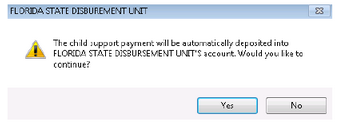
3. A message will display stating that the payment will be automatically deposited to the State Disbursement Unit’s bank account; click on Yes
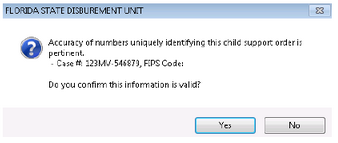
4. A message will display requiring confirmation that the Case # and FIPS Code that were entered are correct. Review the information for accuracy and click on Yes